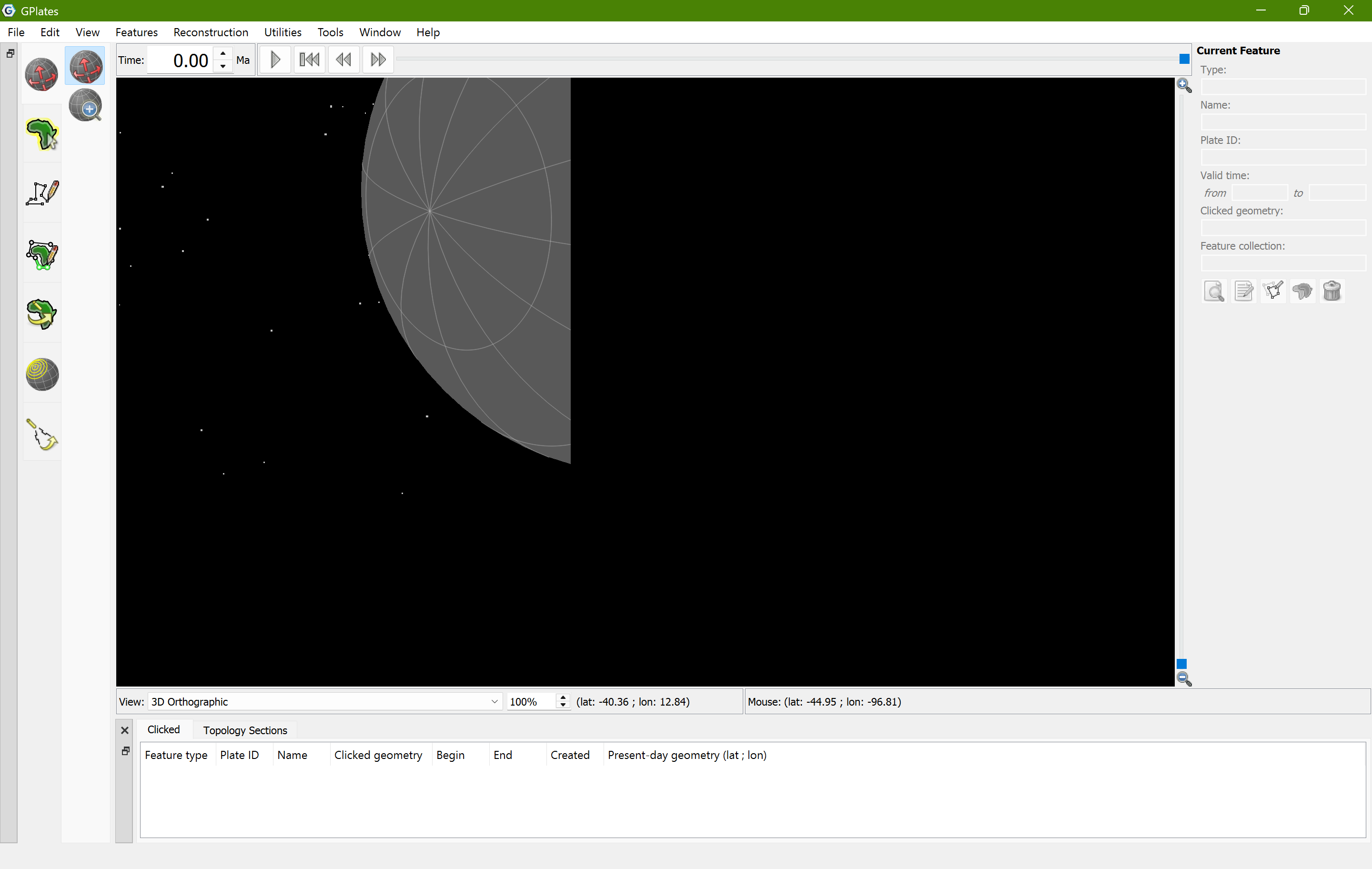
The entire view panel for a 3d orthographic view is suddenly broken for some reason and I cant seem to fix it.
I opened gplates one day and the view just would not work as seen in the photos attached. I tried deleting and reinstalling gplates but that has not fixed the issue. I do not know if anyone else has faced this problem and if there is a solution. I would greatly appreciate any help that anyone could provide. Other projections work perfectly fine its just 3d which seems to be messed up.
I’ve not seen or heard of that before. It looks like the view was expanded but the viewport remained the original size (as in it’s only rendering to the part of the screen that was the original size of GPlates before you expanded).
Since this is the first time I’ve heard of this it could be some kind of driver bug. Maybe try upgrading your OpenGL drivers if possible.
The other possibility is you’re using a laptop screen and an external monitor together (which potentially could be using the wrong screen settings or something).
Or maybe you have a dedicated graphics card and integrated graphics, in which case you could switch to using the dedicated graphics card (in your system settings).
I vaguely recall that the similar thing happened to me once on my macbook. when I resized the GPlates window, the GUI messed up. But the problem was gone for me when I quit GPlates and start it again. And it never happened again since that one single incident some time ago.
I have tried restarting the computer but that still doesn’t help the issue. I have also tried completely uninstalling gplates and reinstalling it but that still seem to make a difference.
I asked Gemini about this problem and it gave some advices. See the text below.
Hello! It looks like you’ve hit a known, albeit incredibly frustrating, OpenGL rendering bug that occasionally crops up in GPlates under certain hardware/driver combinations.
Since you mentioned that other projections work perfectly fine and it’s strictly the 3D Orthographic view that is broken, we can narrow this down. Reinstalling GPlates usually doesn’t fix this because the installer leaves your local user configuration files and registry keys intact, meaning the broken state gets carried right back over.
Here are the step-by-step solutions to get your 3D globe back, ordered from the easiest fix to the most thorough:
1. The Cache & Settings Purge (Highly Recommended)
Since reinstalling didn’t work, we need to completely wipe GPlates’ memory of your previous sessions and window states.
Inside GPlates: Go to the top menu and select File → Clear Session.
The Deep Clean: Close GPlates. Open your file explorer and navigate to your local AppData folder (usually C:\Users\YOUR_USERNAME\AppData\Local\GPlates\). Delete the temporary files or cache folders inside here. When you reopen GPlates, it will be forced to rebuild its visual schema from scratch.
2. Bypass High-DPI Scaling Artifacts
As seen in 1000001920.png, the 3D viewport is getting clipped by a perfectly straight vertical line, which is a classic symptom of Windows layout scaling messing with the software’s coordinate system.
Right-click your GPlates desktop shortcut (or gplates.exe) and select Properties.
Go to the Compatibility tab.
Click on Change high DPI settings.
Check the box that says “Override high DPI scaling behavior”.
Set the drop-down menu beneath it to Application (instead of System).
Hit Apply, restart GPlates, and see if the globe renders fully.
3. Force-Trigger a Render Pipeline Refresh
Sometimes the OpenGL context gets stuck on a bad scissor test or depth buffer calculation.
Open GPlates and switch the view to 2D Mercator or Rectangular (which you mentioned work fine).
While in 2D, go to View → Camera Location → Set Location and reset everything to 0, 0 with a standard 100% zoom.
Now, switch the drop-down back to 3D Orthographic. This sequence forces GPlates to destroy the working 2D viewport and reallocate the pixel bounds for the 3D globe.
4. NVIDIA/AMD “Threaded Optimization” Conflict
If you are using a dedicated graphics card, your GPU control panel might be forcing an optimization that GPlates’ Qt-based GUI doesn’t like.
Open your NVIDIA Control Panel (or AMD Software).
Go to Manage 3D Settings → Program Settings.
Click Add and select GPlates.
Scroll down to find Threaded Optimization and turn it OFF.
Also, look for Antialiasing - FXAA and turn it OFF, as it can sometimes cause projection textures to clip aggressively.
Give the session clear and the High-DPI toggle a shot first—one of those two almost always solves the “half-invisible 3D globe” mystery!